How to keep your iPhone and your child's iPad in sync
By James Harrell · November 11, 2026
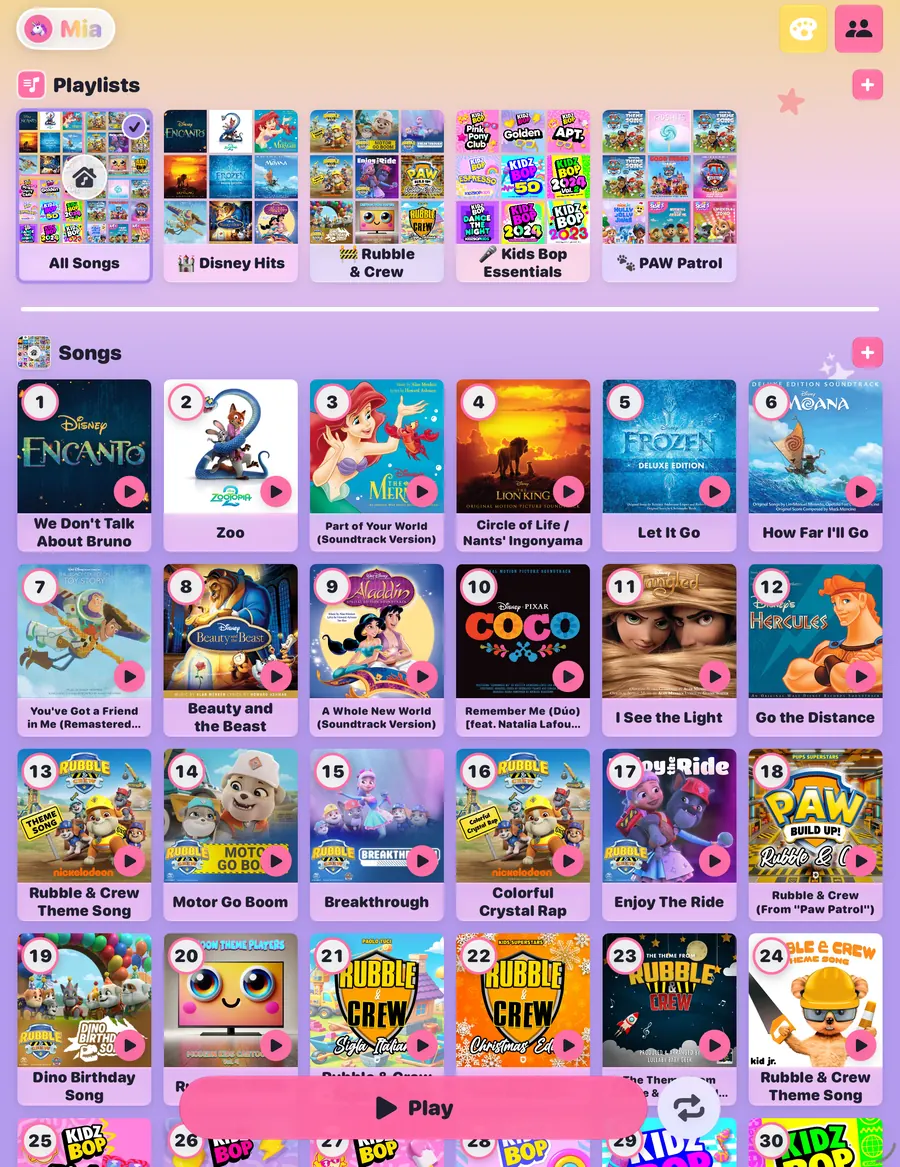
A lot of families have the same setup: a grown-up's iPhone, and an iPad that mostly belongs to the kids. You hear a song your little one will love while you're out, and the iPad is at home. With Jukebug, the kids music player I make, you add the song on your iPhone and it shows up on the iPad by itself. Nobody has to touch the iPad.
That works because Jukebug keeps its music library in iCloud. Every iPhone and iPad that uses the library sees the same kid profiles, playlists and songs, and a change on one shows up on the others. It's free, with no Premium needed.
What stays in sync
- Kid profiles, with their names, emoji and themes.
- Playlists, with their emoji, colors and the order you put them in.
- Every song you add or remove.
- Hidden playlists. Hide one from the kids and it's hidden on every device.
- The bedtime schedule from Premium, including Skip Tonight.
So you can build a road trip playlist on your phone in the evening, and it's on the iPad in the morning. If your partner adds a song from their phone, it lands there too.
First, which kind of setup do you have?
It depends on which Apple Account is signed in on the kids' iPad. On the iPad, open Settings and look at the name at the top.
- If it's your own Apple Account, follow the first set of steps. There's nothing to set up.
- If it's a different Apple Account, such as your child's own account from Family Sharing, a partner's phone or a grandparent's iPad, follow the second set. It takes one invitation.
Devices on the same Apple Account
- Check that iCloud is on for both devices. In Settings, tap your name, then iCloud, and make sure Jukebug is turned on in the list of apps that use iCloud.
- Install Jukebug on each one, and open it.
To check, open Jukebug's grown-up area and tap Sync & Share. It sits near the top of the list on iPhone, and in the sidebar on iPad. When it says Syncing with your iCloud, iCloud is working on this device.
That's all. Your profiles and playlists appear on the iPad by themselves, and stay the same from then on. A change usually shows up on the other device soon after, while Jukebug is open there, or the next time it opens.
Devices on different Apple Accounts
Jukebug shares the library through iCloud, the same way you'd share a note or a folder. You invite the other Apple Account once, and from then on both sides see the same library.
- Install Jukebug on the other iPhone or iPad, and make sure Apple Music is signed in there.
- On your iPhone, open Jukebug's grown-up area and tap Sync & Share. Then tapInvite Family.
- Invite the email address or phone number of the Apple Account that's signed in on the other device. You can send the invitation by Messages or Mail.
- Open the invitation on the other device. Jukebug opens, and after a moment your kids' profiles and playlists appear.
Everyone you invite can add and remove songs and change playlists, the same as you. Everyone in the share works on the same library. If you have more than one kid profile, they're all shared together. Sync & Share shows who has joined and whether an invitation is still waiting. To add someone else, or stop sharing with someone, tap Manage Sharing on the same page, on the device that sent the invitations.
What each device keeps for itself
- Apple Music. Music plays through Apple Music, so the Apple Account on each device needs an Apple Music subscription. An Apple Music Family plan covers up to six people.
- Downloaded songs. To play without Wi-Fi, download the songs on each device that needs them.
- The grown-up check. The math question or PIN is set on each device, so a PIN you set on the iPad isn't on your phone.
- The stop timer. It runs on the device where you start it.
If something doesn't show up
- Check that both devices are online and signed in to iCloud.
- Open Jukebug on the device that's behind. Changes arrive while the app is open.
- Open Sync & Share in the grown-up area on that device. It says whether iCloud is working there, and whether the device is in a shared library.
- On a different Apple Account, check that the invitation was opened on that device, while signed in to the account you invited.
- Still stuck? Email me from the app: in the grown-up area, open Settings and tap Request a Feature or Report a Bug. It includes the sync details I need, along with your kids' profile, playlist and song names. You can read or edit it before you send it.
Premium is optional, and if you subscribe, people in your Apple family group get it too through Family Sharing. Syncing and sharing the library stay free either way.
More guides: how to turn an iPad or an old iPhone into a music player for kids, and how to let a toddler use Apple Music without your library.