How to turn an iPad or an old iPhone into a music player for kids
By James Harrell · November 11, 2026
The family iPad or a spare iPhone makes a good music player for a little one, as long as it can only do one thing. Guided Access is a setting that's already on every iPad and iPhone. It locks the screen to a single app, so your child can't wander into games, videos or your messages.
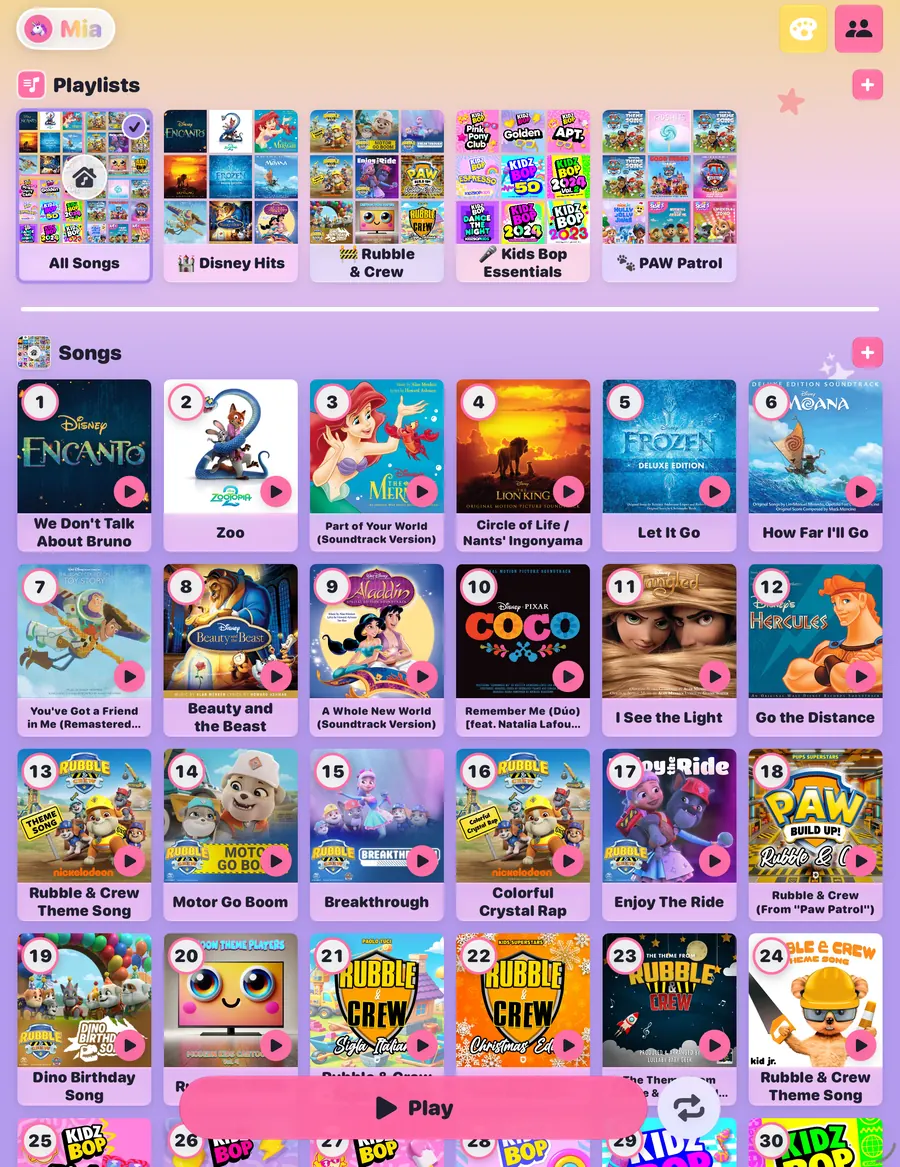
These steps use Jukebug, the kids music player I make. It plays only the Apple Music songs you pick. Guided Access works the same way with any other app.
What you need
- An iPad or iPhone with iPadOS or iOS 17 or later. A spare iPhone on Wi-Fi is fine, even with no SIM card.
- An Apple Music subscription.
- Jukebug, which is free on the App Store.
- A sturdy case, if the iPad is going to be carried around.
1. Add their songs
Open Jukebug, pass the grown-up check, and add songs, albums or whole playlists from Apple Music. Then download those songs in the Music app, so they keep playing without Wi-Fi. That matters most on a spare iPhone that lives in the playroom or the car.
2. Turn on Guided Access
- Open Settings, tap Accessibility, then Guided Access, and turn it on.
- Tap Passcode Settings and set a Guided Access passcode your child doesn't know. You can also let Face ID or Touch ID end a session.
3. Lock the screen to Jukebug
- Open Jukebug and choose your child's profile.
- Triple-click the top button on an iPad, or the side button on an iPhone. If the device has a Home button, triple-click that. If a list of shortcuts appears, tap Guided Access.
- Tap Options, which newer versions call Session Settings. Turn off Volume Buttons to keep the volume where you set it, and turn off Motion so the screen doesn't rotate.
- Tap Start.
Your child can now play their songs and playlists, and can't leave Jukebug until you end the session. You don't need to block off any part of the screen, because Jukebug's settings already sit behind a grown-up check.
4. Get the iPad back
Triple-click the same button, enter the passcode, and tap End. If you turned on Face ID or Touch ID for Guided Access, a double-click also works on iPadOS or iOS 18 and earlier.
Good to know
- Time Limit, on the same Options screen, shows a message across the screen when time is up. The iPad stays locked until you enter the passcode.
- Jukebug's optional Premium has a bedtime wind-down that dims the screen and stops the music at a time you set.
- Display Auto-Lock, in the Guided Access settings, sets how soon the screen locks when nobody is touching it.
- Jukebug keeps the screen on while music is playing. You can turn that off in its settings, under Keep Screen On While Playing.
- On an iPhone, Apple says Crash Detection and emergency calls aren't available during a Guided Access session. Use a spare phone for this, not the one you rely on.
- If the iPad is your child's own, Apple's parental controls can also block installing new apps. The steps are in Apple's guide to parental controls.
The steps above come from Apple's Guided Access page, which I checked on November 11, 2026.
More guides: how to let a toddler use Apple Music without your library, and what to look for in a music player app for a young child.